# Troubleshooting
Need to diagnose why your tours are not starting? You can enable a special mode which tells HelpHero to print out debug information to your console.
## 1. Open the Chrome console
Open the Chrome console by using the shortcut key `Command+Option+J` on **Mac** or `Control+Shift+J` on **Windows/Linux**. Visit the [Chrome docs](https://developers.google.com/web/tools/chrome-devtools/open#console) for more info.
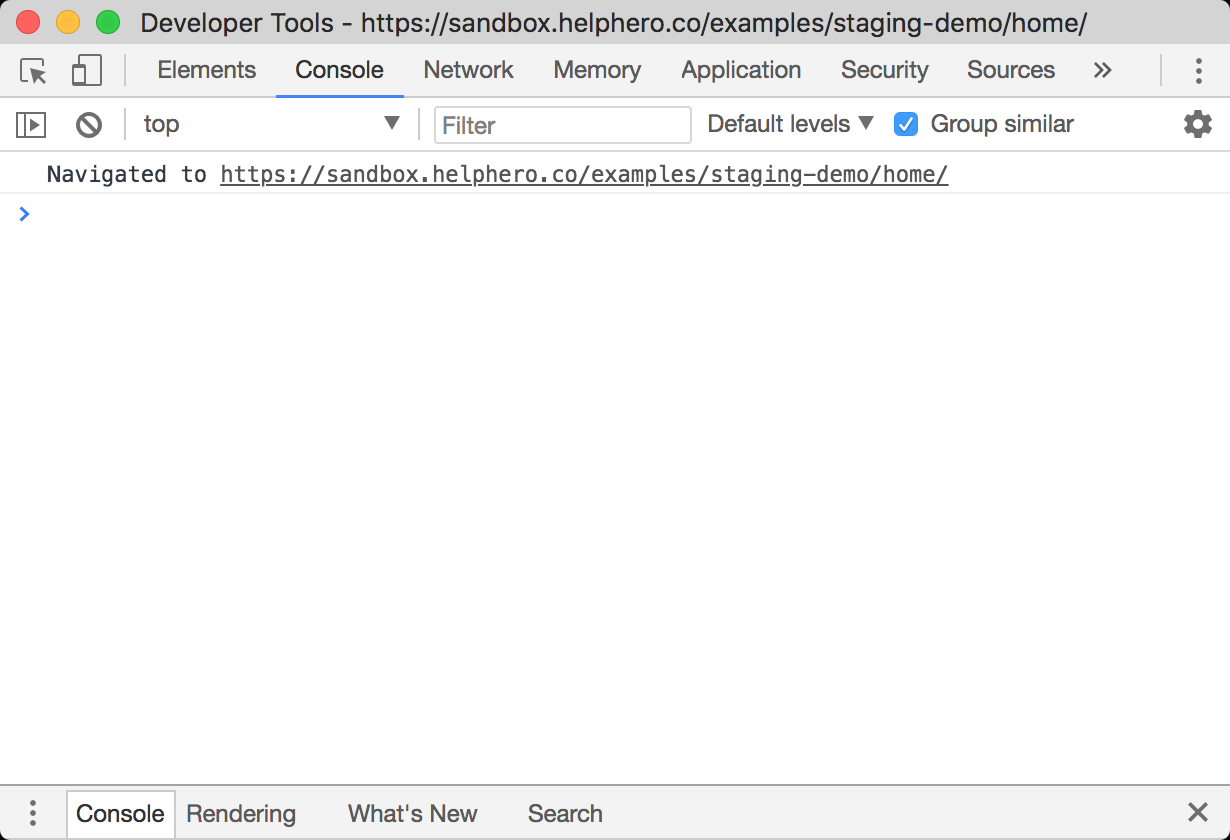
The chrome console should open and look something like this:
## 2. Enable debug mode
To enable debug mode, visit a page on your website where the HelpHero scripts are installed and add `?helphero_debug=true` to the end of the URL in the browser address bar and then hit enter. For example: `https://www.example.com/login?helphero_debug=true`
You should now see HelpHero logging, all logs originating from HelpHero will be prefixed with `[HelpHero]`
![The Console filled with HelpHero entries, each prefixed [HelpHero], reporting tours started, advanced and skipped](/docs/images/console-logs-2x.webp)
**Note:** This only enables logging on your current browser. If you want to enabled debugging on another computer you will need to execute the above snippet again.
:::note
Alternative debug toggle
In some scenarios where you do not have access to change the URL, for example if the scripts are installed on a nested iframe (ie Shopify App). you will need to use this alternative method to toggle debug mode.
1. [Open the Chrome console](/docs/troubleshooting/#1-open-the-chrome-console)
1. If your HelpHero scripts are installed on an nested iframe you may need to switch the console context to that iframe see [Chrome console docs](https://developers.google.com/web/tools/chrome-devtools/console/reference#context) for more info.
1. Then copy and paste the following code:
```js
localStorage.setItem('__HLP_DEBUG__', '*');location.reload();
```
into your console and then hit the `Enter` key to execute it.
:::
## Disable debug mode
To disable debug mode, visit a page on your website where the HelpHero scripts are installed and add `?helphero_debug=false` to the end of the URL in the browser address bar and then hit enter.
:::note
Alternative debug toggle
In some scenarios where you do not have access to change the URL, for example if the scripts are installed on a nested iframe (ie Shopify App). you will need to use this alternative method to toggle debug mode.
1. [Open the Chrome console](/docs/troubleshooting/#1-open-the-chrome-console)
1. If your HelpHero scripts are installed on an nested iframe you may need to switch the console context to that iframe see [Chrome console docs](https://developers.google.com/web/tools/chrome-devtools/console/reference#context) for more info.
1. Then copy and paste the following code:
```js
localStorage.removeItem('__HLP_DEBUG__');location.reload();
```
into your console and then hit the `Enter` key to execute it.
:::
## 3. Turn off the HelpHero Editor
It may also help to turn off the HelpHero Editor. As tours may run slightly differently when the Editor is present. To learn how to [toggle the Editor on and off.](/docs/editor/#toggle)